Bookings
Access your bookings to communicate with activity owners, ask questions, view other participants, or post messages on the message board.
Create a booking
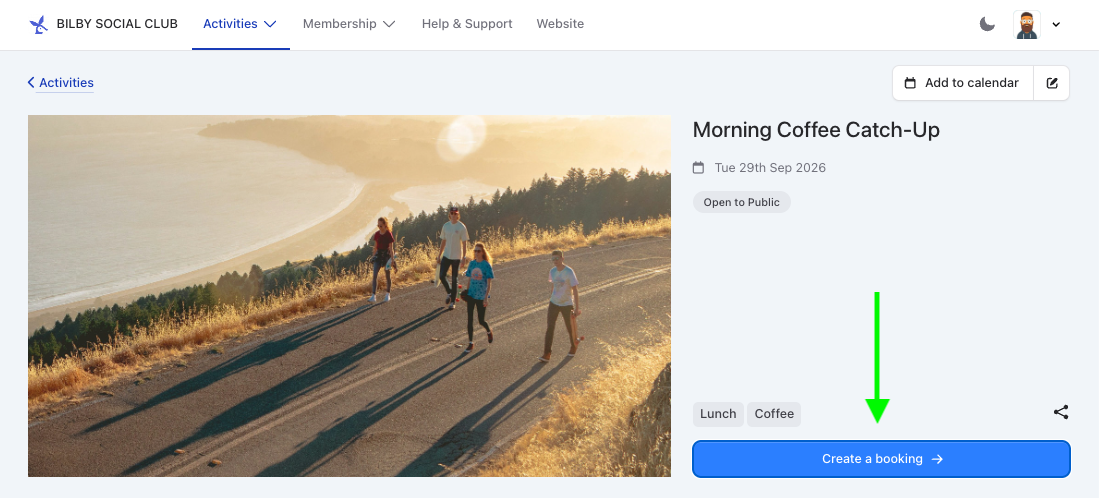
View Upcoming Activities posted by a partner to create bookings. When an activity is set to Open to public or Members only and has spots available, it can be booked!
- Make sure your account is registered and verified.
- Find an activity that's available for bookings.
- Select the Create a booking button.
- Follow the prompts.
View booking details
Once you've created a booking, you can manage it, communicate with the activity owner, view other participants, or post on the Message Board.
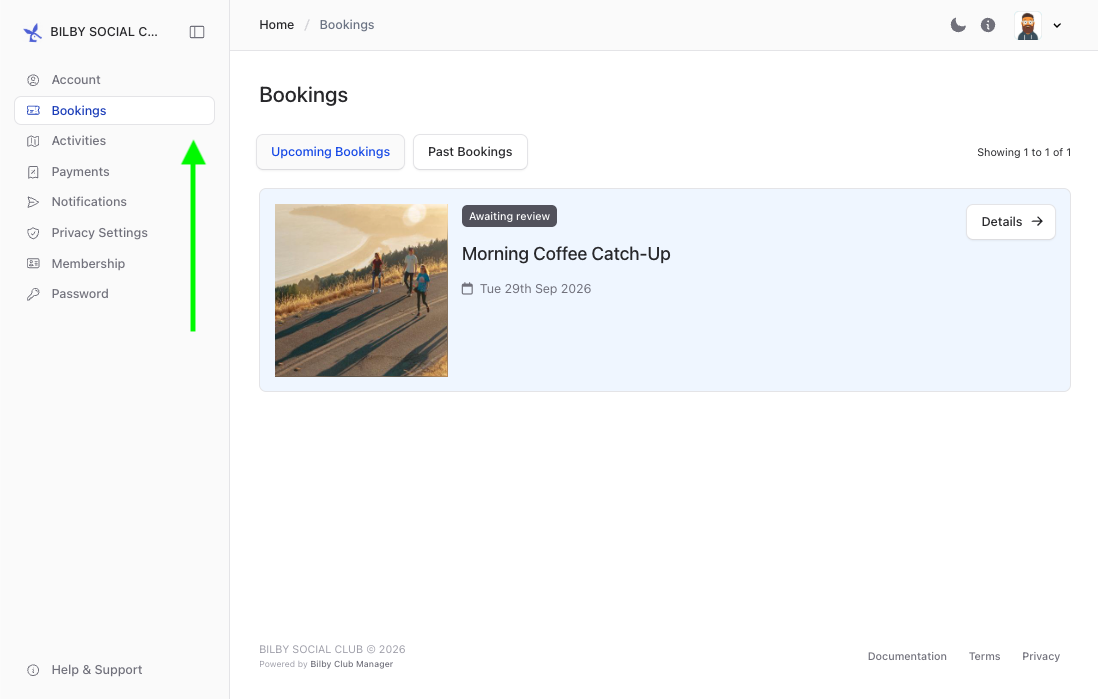
To access your bookings, click the Account icon (top right), select My Account, then choose Bookings from the sidebar (or the navigation bar on mobile).
Click a booking's Details link to open it.
Booking status
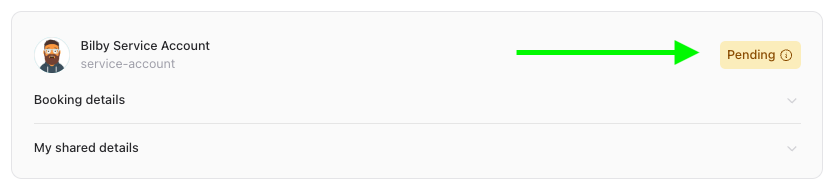
Some partners have an approval process for their FREE activities. When an activity is PAID, your booking is confirmed right away.
TIP
Check your booking's status by opening it — click the badge for more info.
Message board Approved bookings only
The Message Board lets you post messages and communicate with others on an activity. It's useful for coordinating information.
Partners running activities use the Message Board to communicate updates, changes, or cancellations.
To notify someone on the message board, use an "@tag" with their username.
View participants Approved bookings only
With an approved booking, you can view others attending the activity. To see the full list, open your booking and select Participants from the sidebar.
You'll see a list of participants. If you're a Member, you can click a participant's account to view more information.
Send a message
Contacting someone about your booking is easy. Go to the booking details and click Send message to open a message box. Type your message and send — this notifies the activity owner.

Cancel your booking
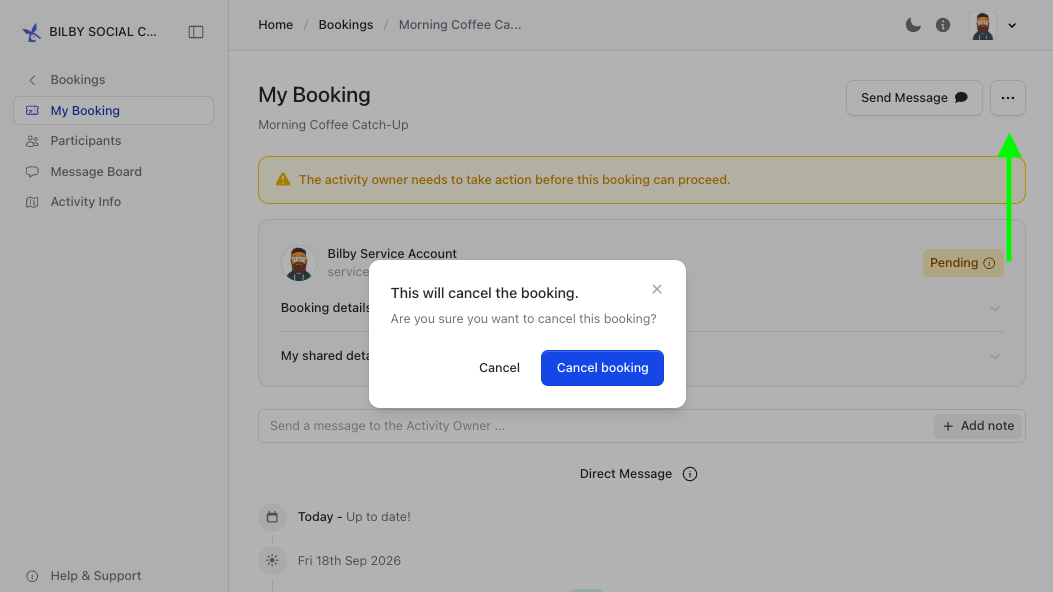
If your plans change and you need to cancel, we recommend reaching out to the activity owner first to let them know.
To send a message, go to your booking details and click Send message. In the message box that opens, type your message and send.
Then use the ellipsis (...) button to open the More options dropdown and select Cancel booking.
INFO
In some cases, only an activity owner can cancel a booking. If so, send a message requesting a cancellation.