
Waitlist
Bilby has an automatic waitlist that you can enable. This is especially useful when you have popular activities that fill up quickly.
Choose how to manage capacity
There are two ways to manage capacity for an activity.
System-managed capacity Set a Max Participants number and enable the waitlist. Bilby tracks available spots, stops new bookings once the activity is full, and lets users join the waitlist.
Activity owner-managed capacity Leave Max Participants blank and keep the waitlist disabled. Bilby doesn't enforce a limit, so you manage bookings and capacity yourself.
Enable waitlist
Before you start, make sure the activity has a Max Participants number set. The waitlist needs a limit to know when the activity is full.
- Open your Activity.
- Select About from the sidebar.
- Toggle the Waitlist option on and save.
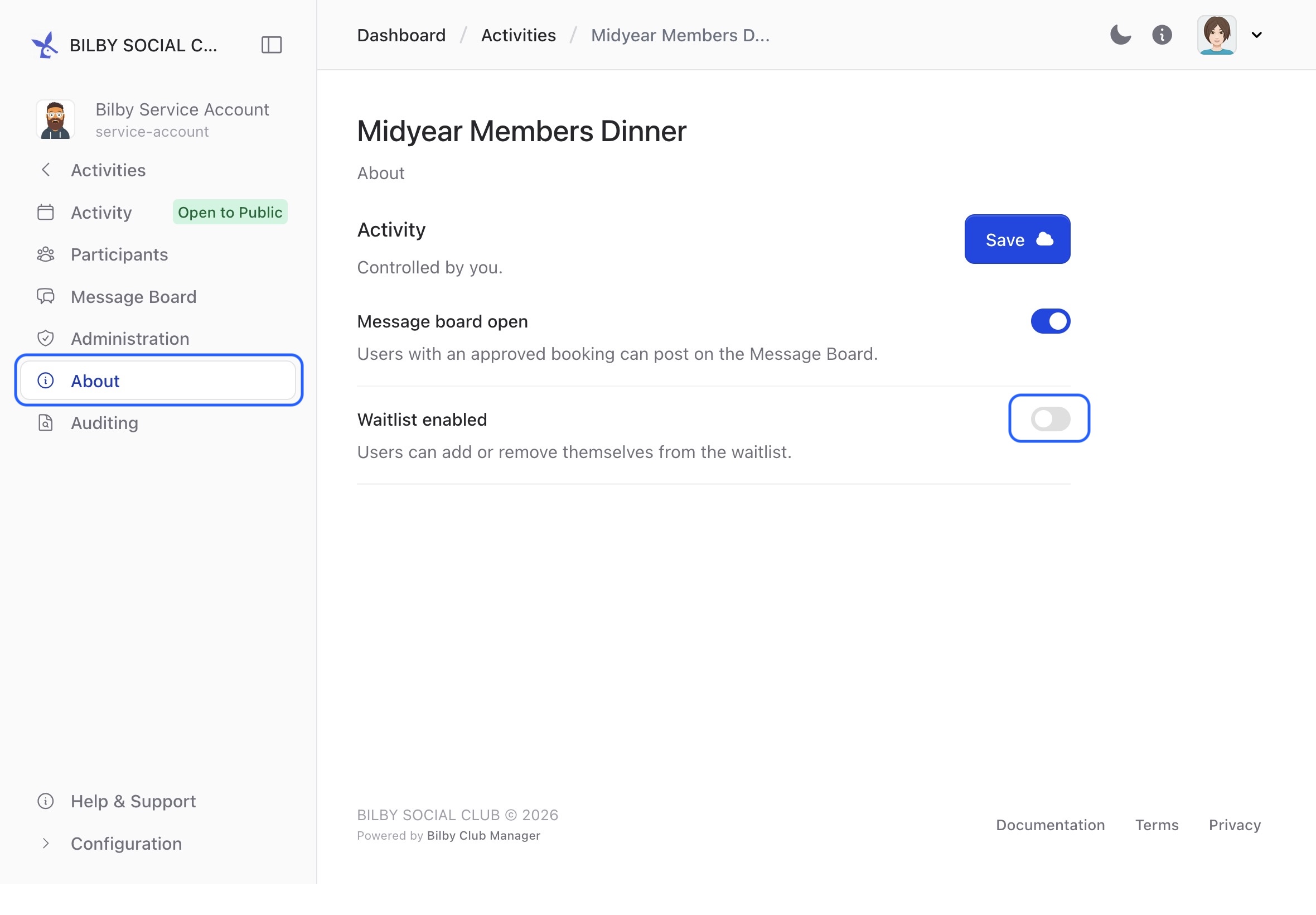
A Waitlist menu item now appears in the sidebar. Select it to view your waitlist. From here you can add users to the waitlist or administer users who've added themselves.
Once the waitlist is enabled, users can add themselves when the activity is full.
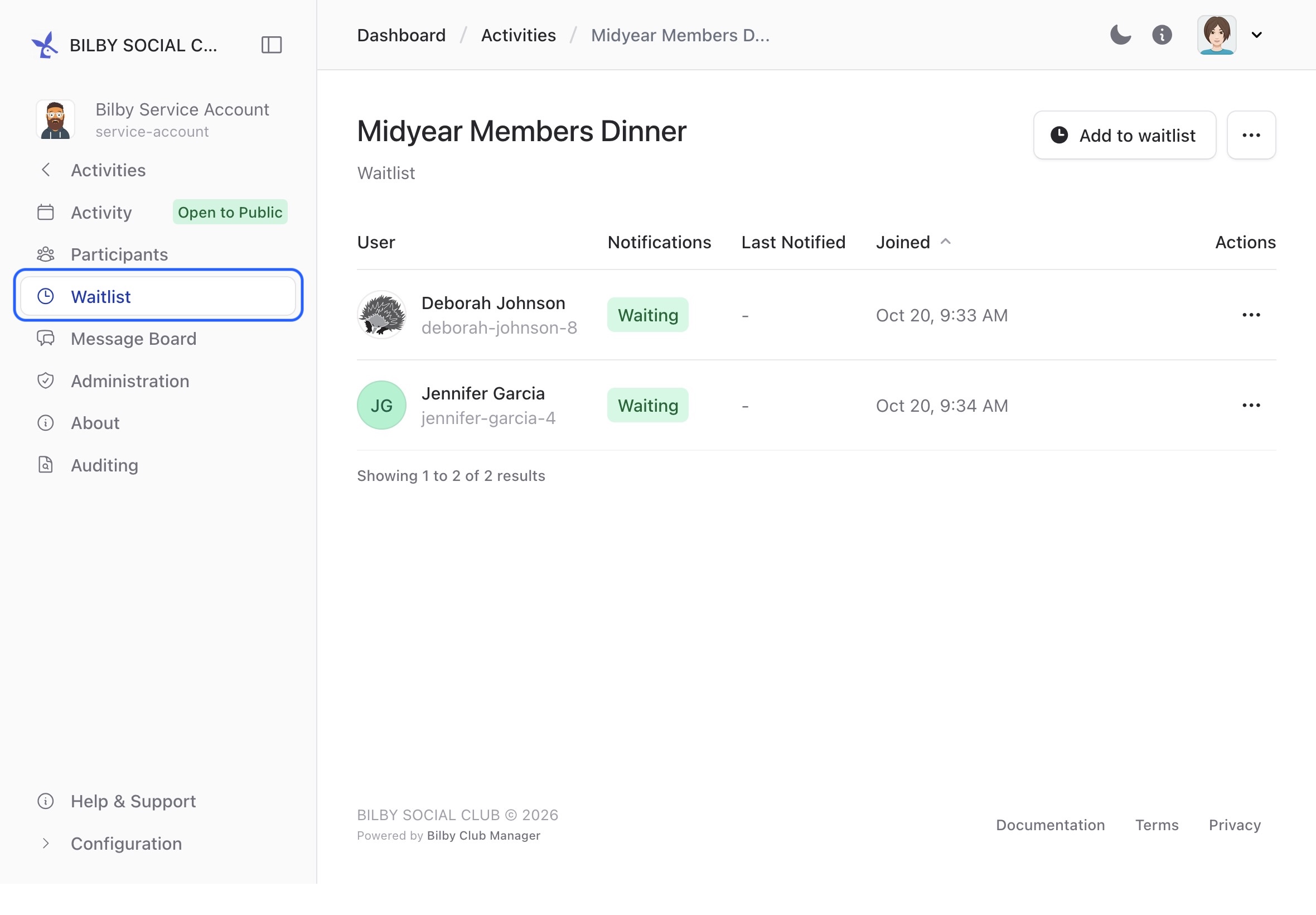
Notifications
For paid activities, Bilby notifies waitlisted users when spots become available. To avoid spamming inboxes, we only send one notification per user.
Waitlist → Booking
You can convert a waitlisted user to a booking at any time, whenever it suits you. Visit the activity waitlist, select a user, then open the ellipsis (...) dropdown and choose Convert to booking.